

Contents
- What is proxy sharing
- Why share from the Mac to the phone
- Step 1: Turn on proxy sharing on the Mac
- Open Shadowrocket on the Mac and click Settings on the left
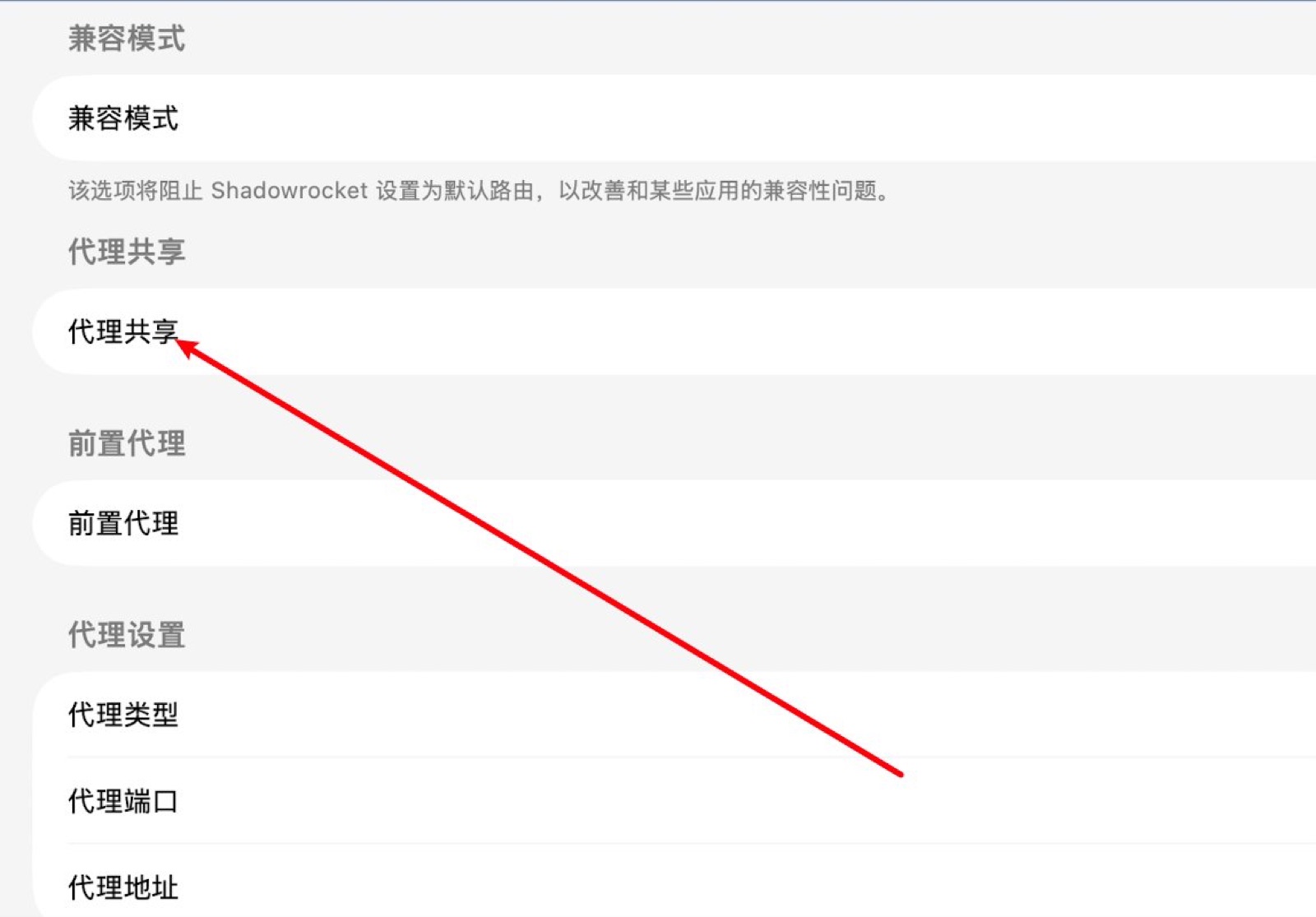
- Go to Proxy
- Then click Proxy Share
- Step 2: Enter the proxy on the iPhone
- Other devices can connect the same way
- Should you turn on authentication?
- Don’t turn on HTTPS decryption casually
These days I run Shadowrocket on my Mac and no proxy app at all on my iPhone. Once they’re on the same Wi-Fi, I enter an IP and a port in Settings and the phone goes straight through the Mac’s node. It’s all thanks to Shadowrocket’s proxy sharing. This post explains how to turn it on on the Mac and what to enter on the iPhone, and Android, Windows and the Switch can follow the same steps.
What is proxy sharing
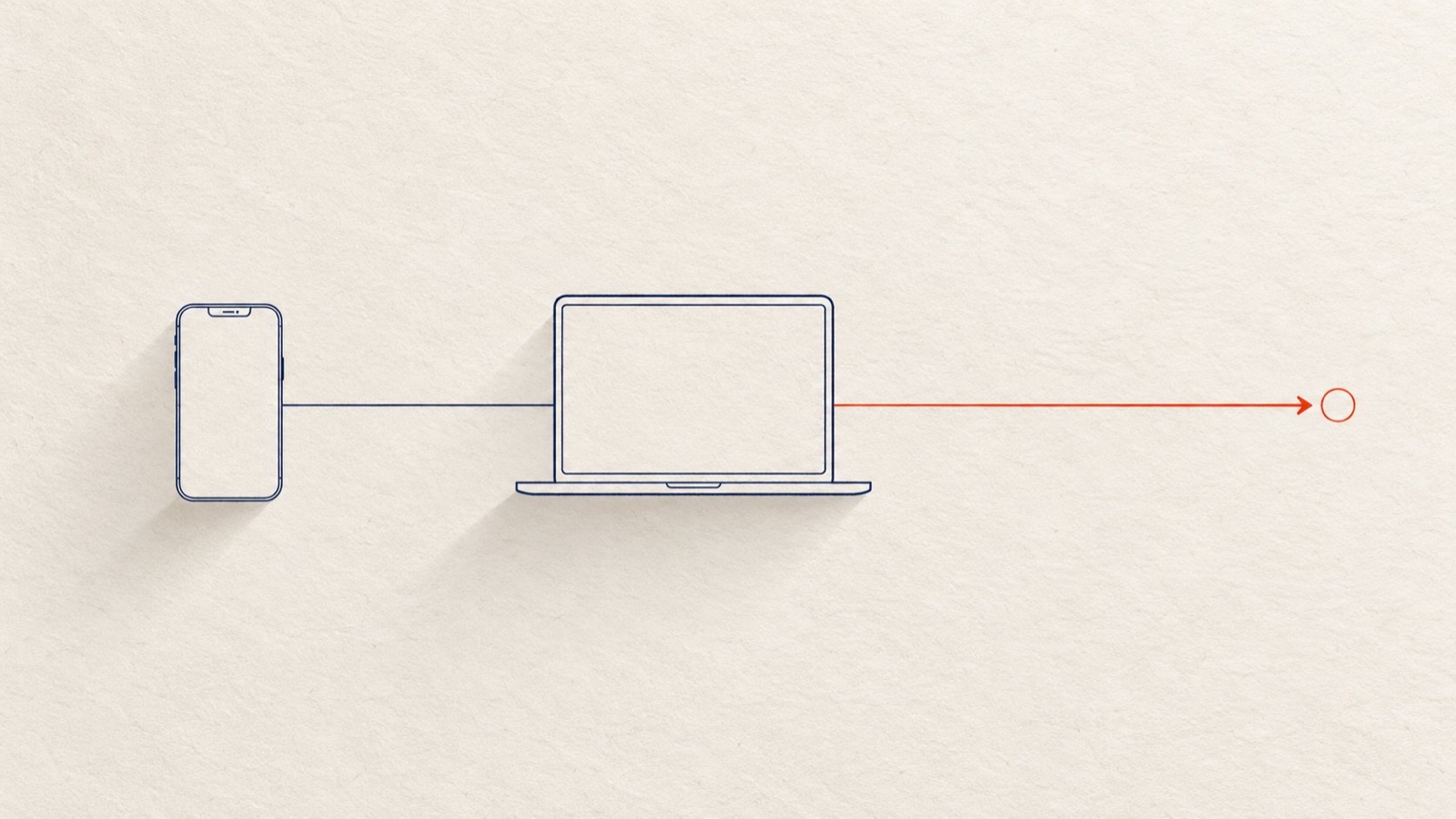
Proxy sharing turns the Mac running Shadowrocket into a small proxy server. Other devices hand their network requests to it, and it forwards them using the nodes and rules you’ve set up.
It supports both SOCKS5 and HTTP, so phones, tablets, computers, and even some game consoles and TVs, can basically all connect as long as they let you set a proxy manually.
Why share from the Mac to the phone
The phone doesn’t need any app, and you don’t need to switch to an overseas Apple ID. Family members’ iPhones can use it too, just by filling in the settings.
The iPhone’s proxy is tied to the Wi-Fi network, so it only applies on your home Wi-Fi. When you leave and switch to cellular or another Wi-Fi, the phone goes back to normal automatically, with nothing to turn off each time.
A Mac that stays plugged in at home makes a perfect always-on sharing hub.
Step 1: Turn on proxy sharing on the Mac
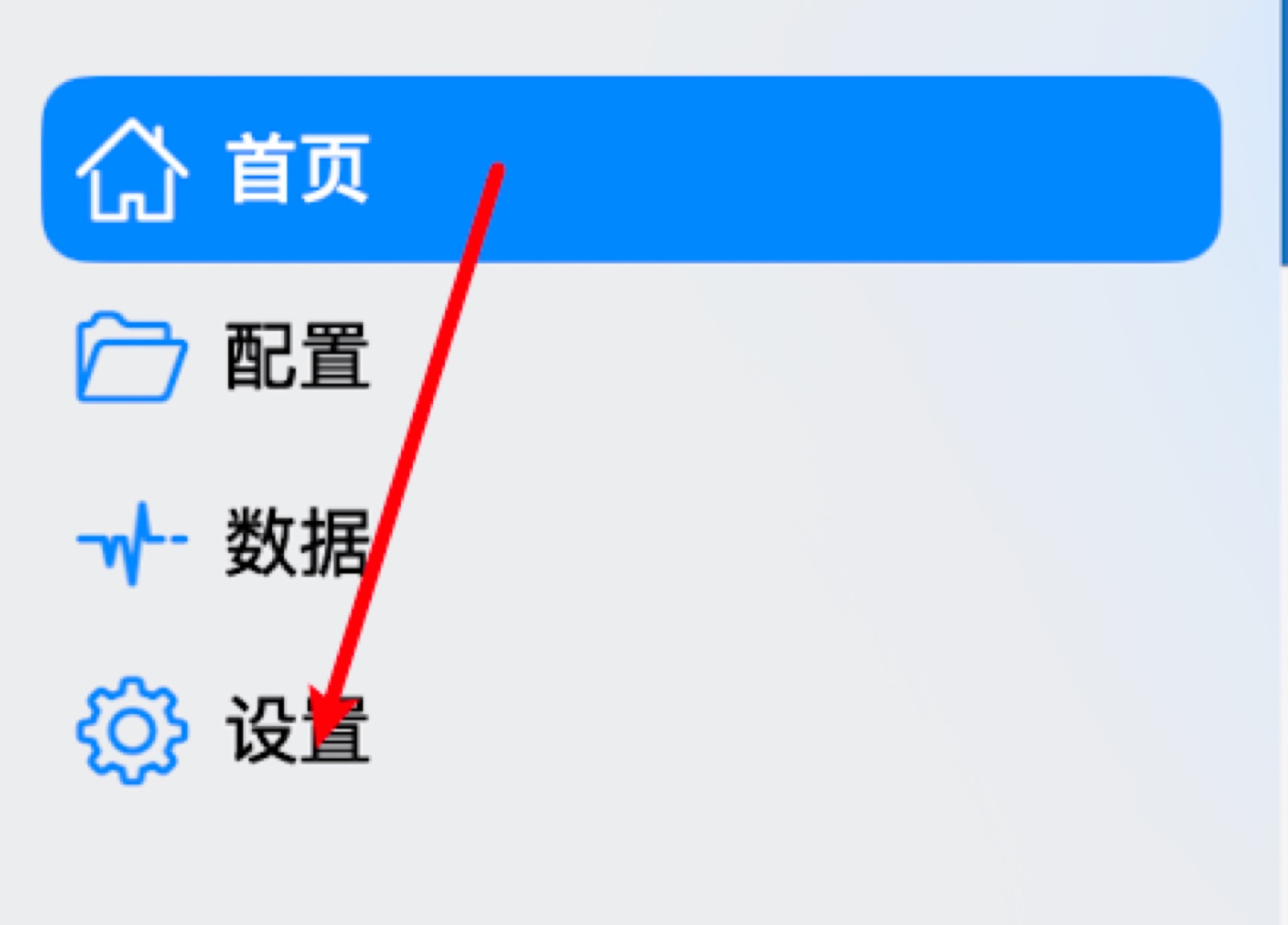
Open Shadowrocket on the Mac and click Settings on the left
Go to Proxy
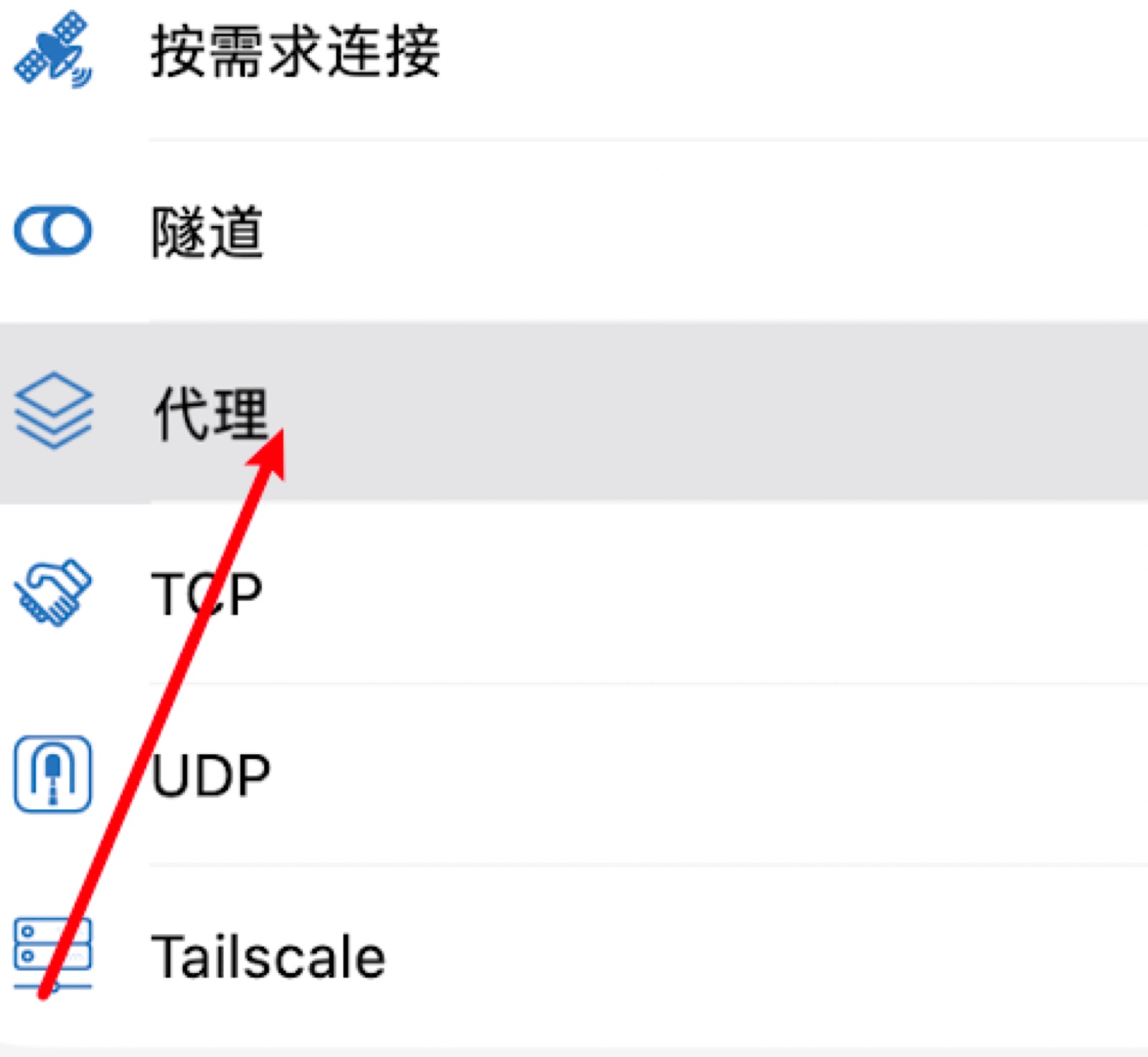
Then click Proxy Share
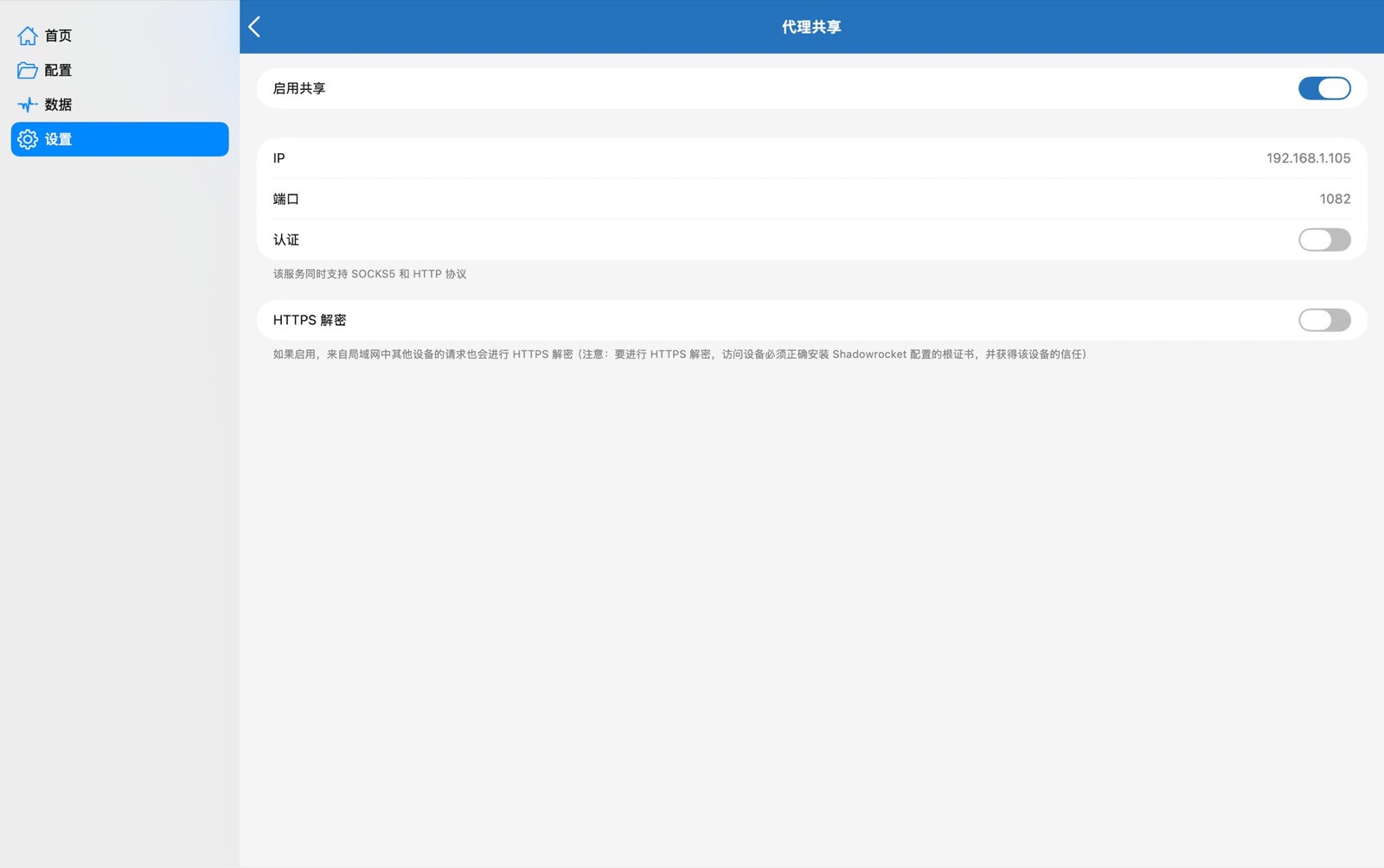
Turn on Enable Share.
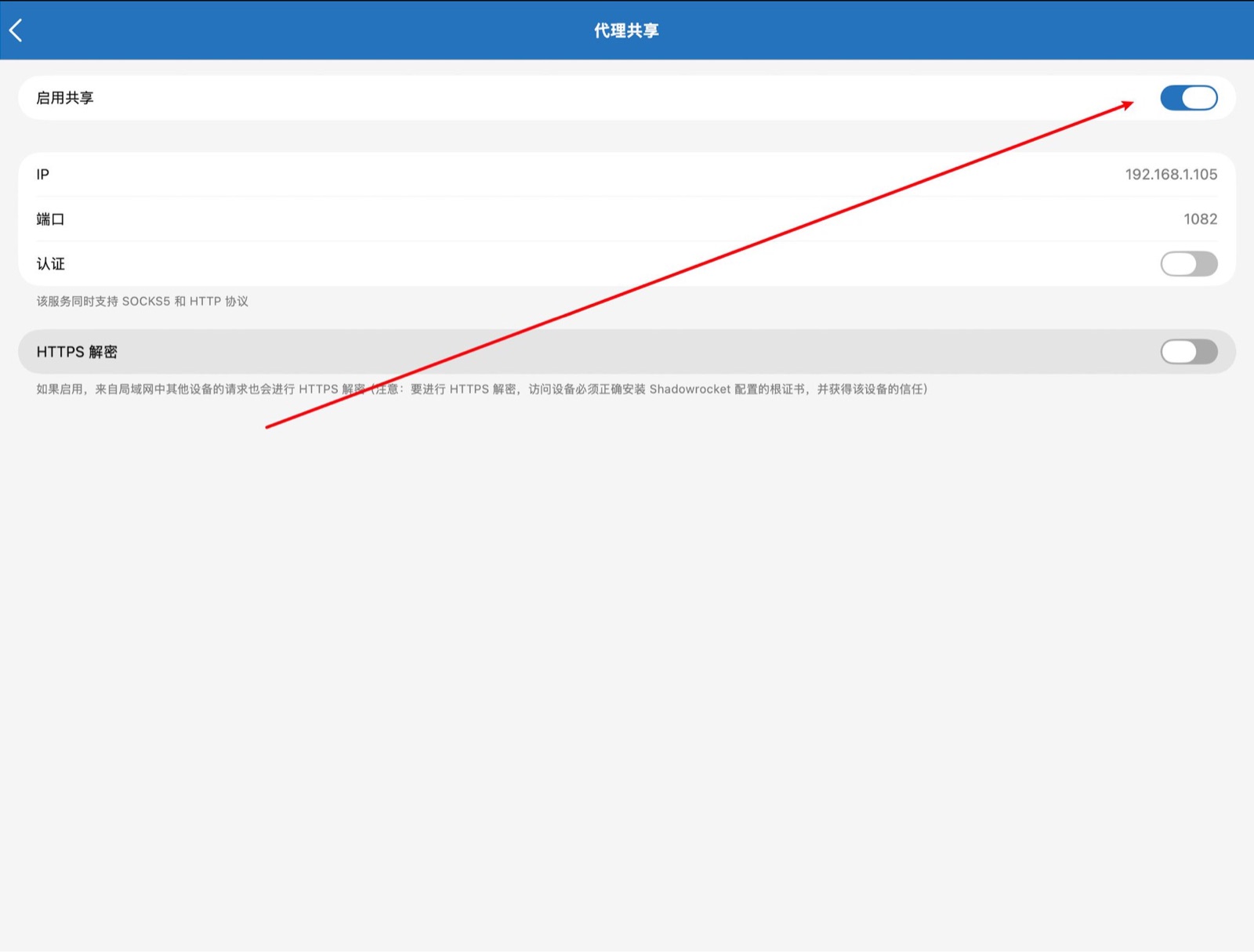
The page shows this Mac’s IP and port on your local network. Mine are 192.168.1.105 and 1082. Note both numbers; you’ll need them on the phone.
Shadowrocket itself has to stay connected, with the switch at the top of the home screen on.
If you close the Mac’s lid or it goes to sleep, sharing stops. To keep it running, turn on “Prevent automatic sleeping when the display is off” under Battery in System Settings while it’s on power.
Step 2: Enter the proxy on the iPhone
First make sure the iPhone and the Mac are on the same Wi-Fi.
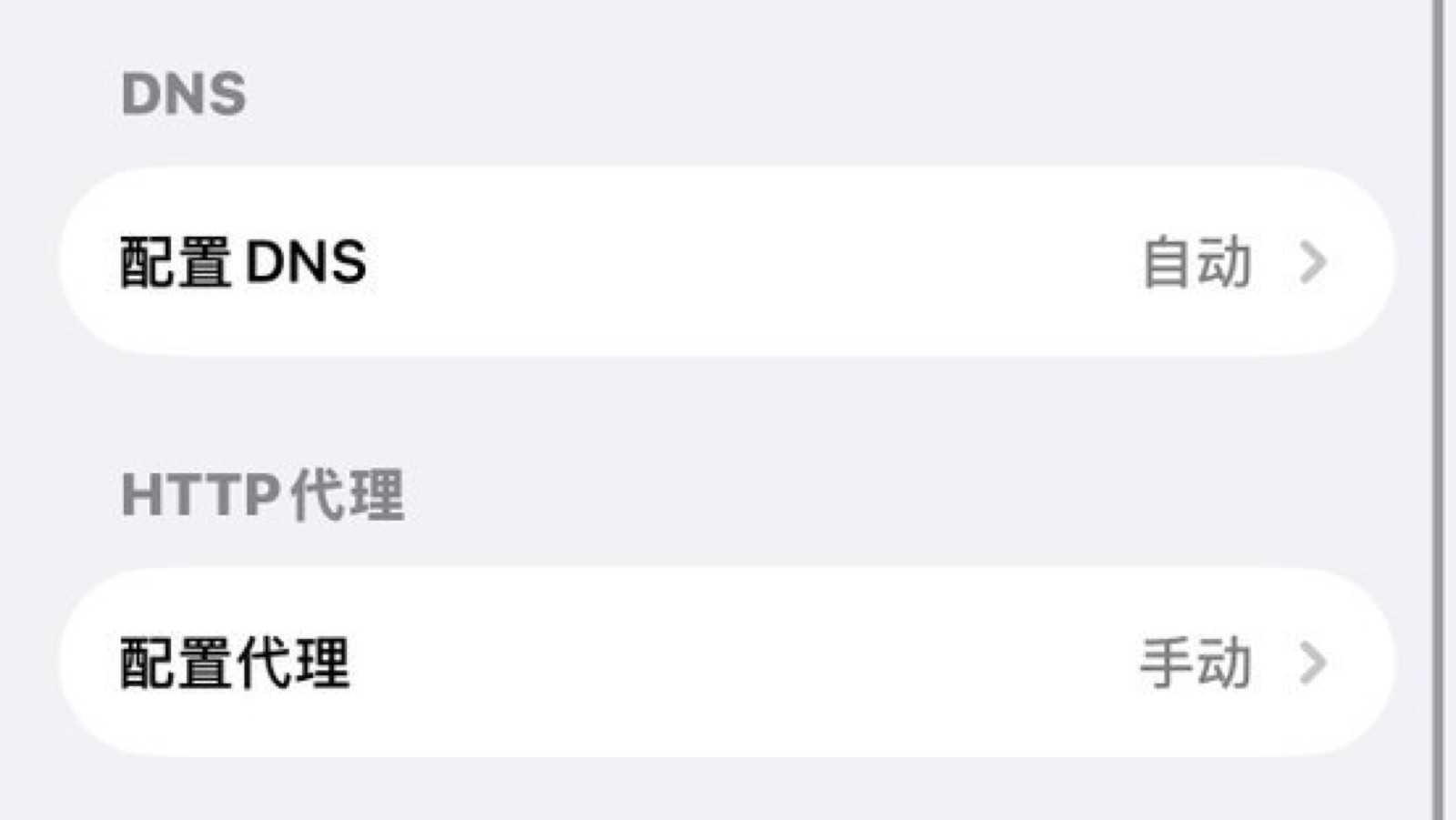
Open Settings, go to Wi-Fi, tap the circled i next to the current network, scroll to the bottom, and tap Configure Proxy under HTTP Proxy.
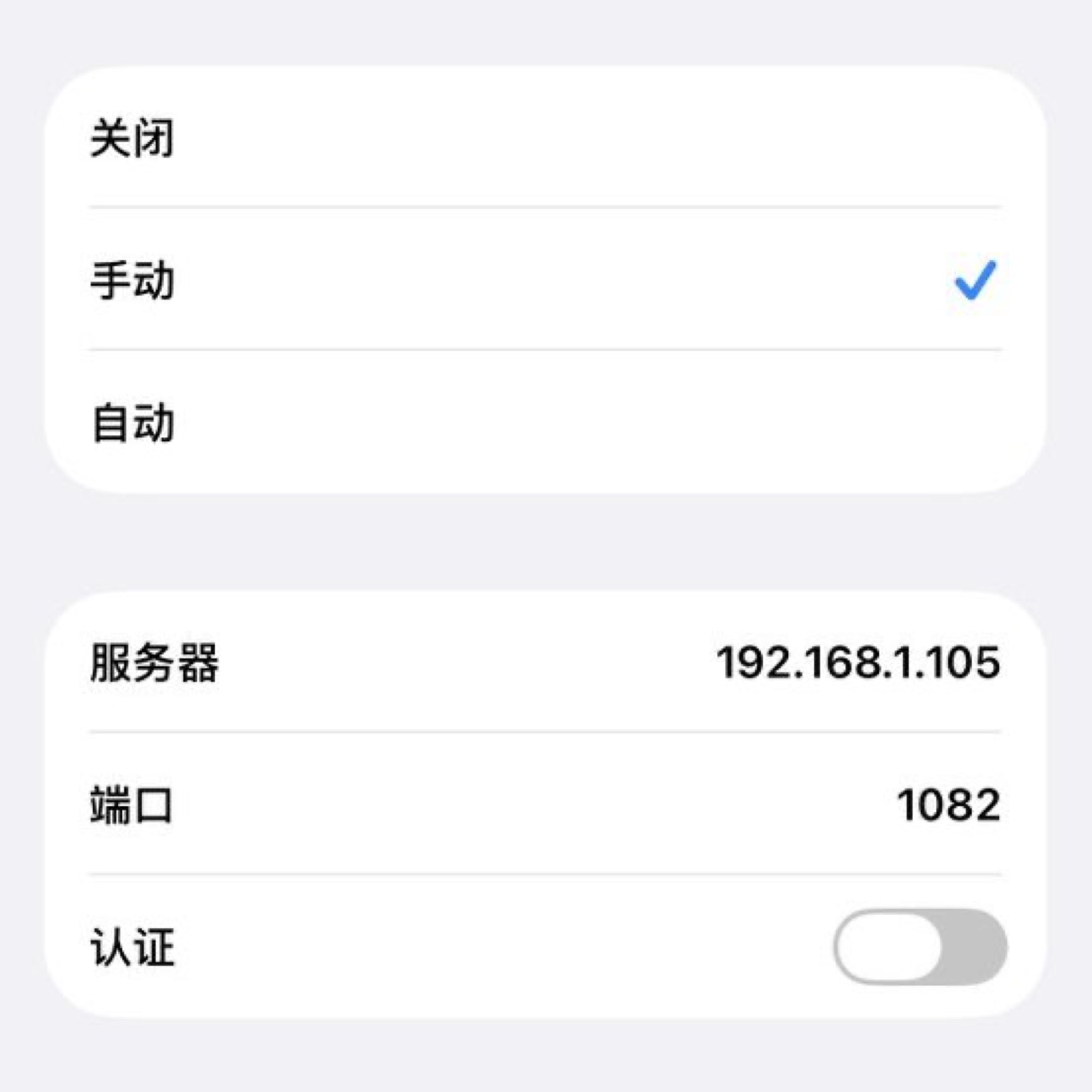
Choose Manual, enter the IP shown on the Mac as the server, and 1082 as the port. If the Mac doesn’t have authentication on, leave authentication off here too. Finally, tap Save at the top right.
Then open Safari and visit a site that normally needs a proxy. If it loads, you’re all set.
Other devices can connect the same way
On Windows, open Settings, go to Network & internet, click Proxy, click Set up next to Use a proxy server under Manual proxy setup, turn it on, enter the IP and port, and save.
On Android the path differs by brand. Usually you long-press the current Wi-Fi or tap it for details, find Proxy, choose Manual, and enter the hostname and port.
On the Switch, go to Internet in System Settings, choose Internet Settings, select the current network, go to Change Settings, find Proxy Settings, set it to On, and enter the server and port.
Should you turn on authentication?
At home you can leave it off. On Wi-Fi shared by lots of people, like a dorm, office or café, I’d turn on authentication on the Mac with a username and password. Otherwise anyone on the same network who knows the IP and port can freeload on your node.
With authentication on, turn on Authentication on the iPhone’s Configure Proxy page too and enter the same username and password.
Don’t turn on HTTPS decryption casually
At the bottom of the Mac’s Proxy Share page there’s HTTPS Decryption. Regular users should leave it off. It’s for developers capturing and debugging traffic: when on, it decrypts HTTPS requests from other devices on the local network, provided those devices have installed and trusted the root certificate Shadowrocket generates.
Don’t install your certificate on other people’s devices, and don’t install someone else’s just because they ask you to.